



The good news is that to improve your Wi-Fi signal can be fixed without calling anyone out – most of the fixes take a few minutes, not a few hours.
Here are 10 practical, plain-English tips to improve your Wi-Fi signal, in the order we’d try them ourselves.
These tips work whatever router you’re using – whether it was provided by your internet service provider or bought separately from a shop. They’re not specific to Quickline hardware. If you’re a Quickline customer and want hands-on help, our Yorkshire-based support team are here to help.
1. Restart your router regularly
If you’re experiencing Wi-Fi issues, restarting your router is the first thing worth trying. It sounds basic, but it clears out minor software glitches and is a genuinely useful first step for diagnosing bigger problems.
- Turn it off at the switch, or unplug the power connector.
- Wait 30 seconds – this matters, so don’t rush it.
- Turn the router back on, or plug it back in.
- Wait 1 to 2 minutes for it to fully reconnect.
Tip: if you’re trying to work out whether it’s your router or your device at fault, test the same spot with a different device before and after the restart.
2. Optimise your router’s placement
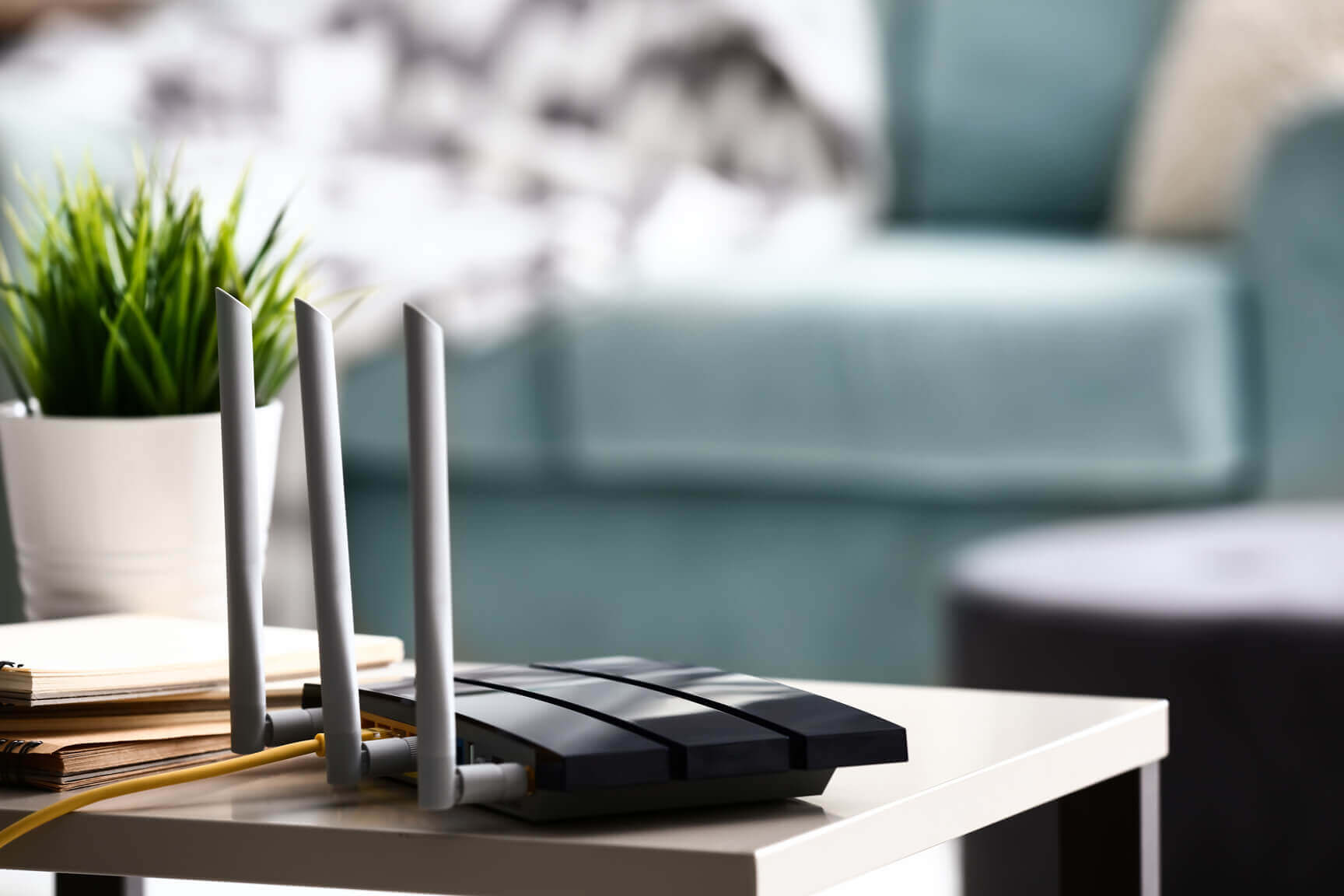
Where your router sits can make a bigger difference than the router itself. A central spot in your home generally gives the most even coverage. Keep it off the floor, away from other electrical appliances, and clear of thick walls, metal objects and cupboards, all of which weaken the signal.
In short: central, out in the open, and off the floor beats convenient every time. We’ve written a full Wi-Fi router placement guide if you want the room-by-room detail.
3. Check and adjust the antenna
If your router has external antennas, try angling one towards your problem area – it can help close a dead spot. It’s also worth checking the antenna connection itself. If the router’s been moved around, these can work loose, and they usually just need a firm quarter-turn to reseat.
4. Switch Wi-Fi bands
Most modern routers broadcast on two bands, and some newer ones offer a third (6GHz).
2.4GHz travels further and passes through walls better, but it’s the slower of the two. Fine for general browsing and everyday use.
5GHz is faster and less congested, but doesn’t reach as far or push through obstructions as well. Better for gaming or streaming close to the router.
Tech Expert: some routers give each band its own network name (e.g. MyRouter_2.4G and MyRouter_5G) so you can choose manually. If yours uses one combined name, your device decides for you – logging into the router’s settings lets you split them if you’d rather choose yourself.
5. Change your Wi-Fi channel
A slightly more technical fix. Inside your router’s settings, under something like “Wireless Settings”, you’ll usually find a channel option. It’s normally set to “Auto”, which is fine – until a neighbouring network is using the same channel and causing congestion.
Two easy ways to check for this:
- Windows: open Command Prompt and type netsh wlan show all to see nearby networks and their channels.
- Android: an app such as WiFi Analyzer shows nearby networks visually, including where channels overlap.
Bonus tip: walk around your home with one of these apps open to see exactly where your signal weakens.
In short: if several neighbours are all on “Auto”, you might all be crowding the same channel. Picking a quieter one manually can genuinely help.
6. Update your router’s firmware
Firmware updates fix bugs, patch security issues, and can improve overall performance. Many routers install these automatically, but it’s worth checking the “Advanced” section of your settings for an update banner. Some older routers need you to download the firmware from the manufacturer’s website and upload it manually.
7. Disable devices you no longer use
Old smart plugs, unused smart bulbs, that tablet nobody’s touched in a year – every device connected to your Wi-Fi takes a small share of its capacity. A periodic clear-out of anything you don’t actually use frees that capacity up for the devices that matter.
8. Extend your Wi-Fi reach
If one area of your home is a persistent dead zone, a Wi-Fi extender or mesh system can help. Extenders boost the existing signal into harder-to-reach areas. Mesh systems go a step further, using multiple access points around your home with a dedicated connection between them, so coverage stays strong from room to room rather than fading out.
Quickline customers: Wi-Fi Everywhere is our own mesh solution, professionally installed to eliminate blackspots throughout your home.
9. Upgrade your equipment
If you’ve worked through the tips above and you’re still having Wi-Fi issues, older hardware may be the limiting factor. Heavy users – gaming, streaming, lots of connected devices – will get the most benefit from a premium router. For most households with everyday browsing and streaming needs, your provider’s supplied router (or its support team) should be able to sort things out.
10. Upgrade to a faster broadband package
Sometimes it isn’t the Wi-Fi at all – it’s the broadband connection behind it. As streaming quality, gaming, and the number of connected devices in the average home keep increasing, older packages that used to be plenty can start to struggle.
If you’ve tried everything else, it may be time to check what faster options are available. Quickline’s full fibre broadband packages are built for exactly this and if you want to see what a difference more speed would actually make to your downloads, our download time calculator is a quick way to check.
Quick checklist to improve your Wi-Fi signal
- Router restarted in the last month
- Router positioned centrally, off the floor, away from metal and appliances
- Correct Wi-Fi band in use for the task (2.4GHz vs 5GHz)
- Wi-Fi channel checked for congestion
- Firmware up to date
- Unused devices disconnected
- Extender or mesh system considered for dead zones
- Broadband package still suited to how your household uses the internet
Common Wi-Fi issues, answered
This is usually down to interference, an overloaded channel, or router placement rather than your broadband speed itself. Work through tips 2, 4 and 5 above first, as they resolve the majority of drop-out issues.
If your speed is fine standing next to the router but drops in another room, it’s a Wi-Fi coverage issue. If it’s slow everywhere, including right next to the router, the issue is more likely your broadband connection itself.
There’s no strict rule, but restarting every few weeks – or whenever you notice issues – is a sensible habit. Routers are designed to run continuously, so there’s no need to switch yours off overnight.
Extenders are good at closing a specific dead spot, but they can only work with the signal that reaches them. If the area near your extender already has weak signal, a mesh system is usually the better long-term fix.
Still struggling to improve your Wi-Fi signal?
We hope these tips have helped improve your Wi-Fi signal. If you’re still struggling, our Yorkshire-based customer experience team are on hand. Contact us if you’re an existing customer needing support.
Not with us yet? Check what’s available at your address and explore our home broadband packages, including full fibre and our Wi-Fi Everywhere mesh system for whole-home coverage.
Simply follow Quickline on Facebook, to get updates, hints and tips direct to your feed.